Use the Planner
Change the date and view
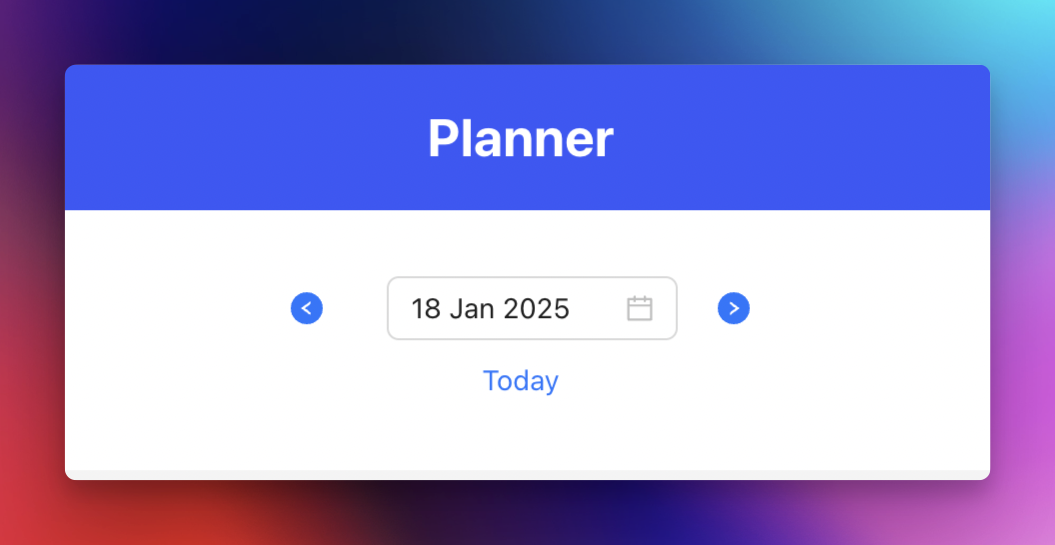
The Planner opens in Week view. Use the view control to switch between Day, Week, and Month.
- Use the date picker to jump to a particular date.
- Use the left and right arrows to move backward or forward.
- Click Today to return to the current date.
Filter by user
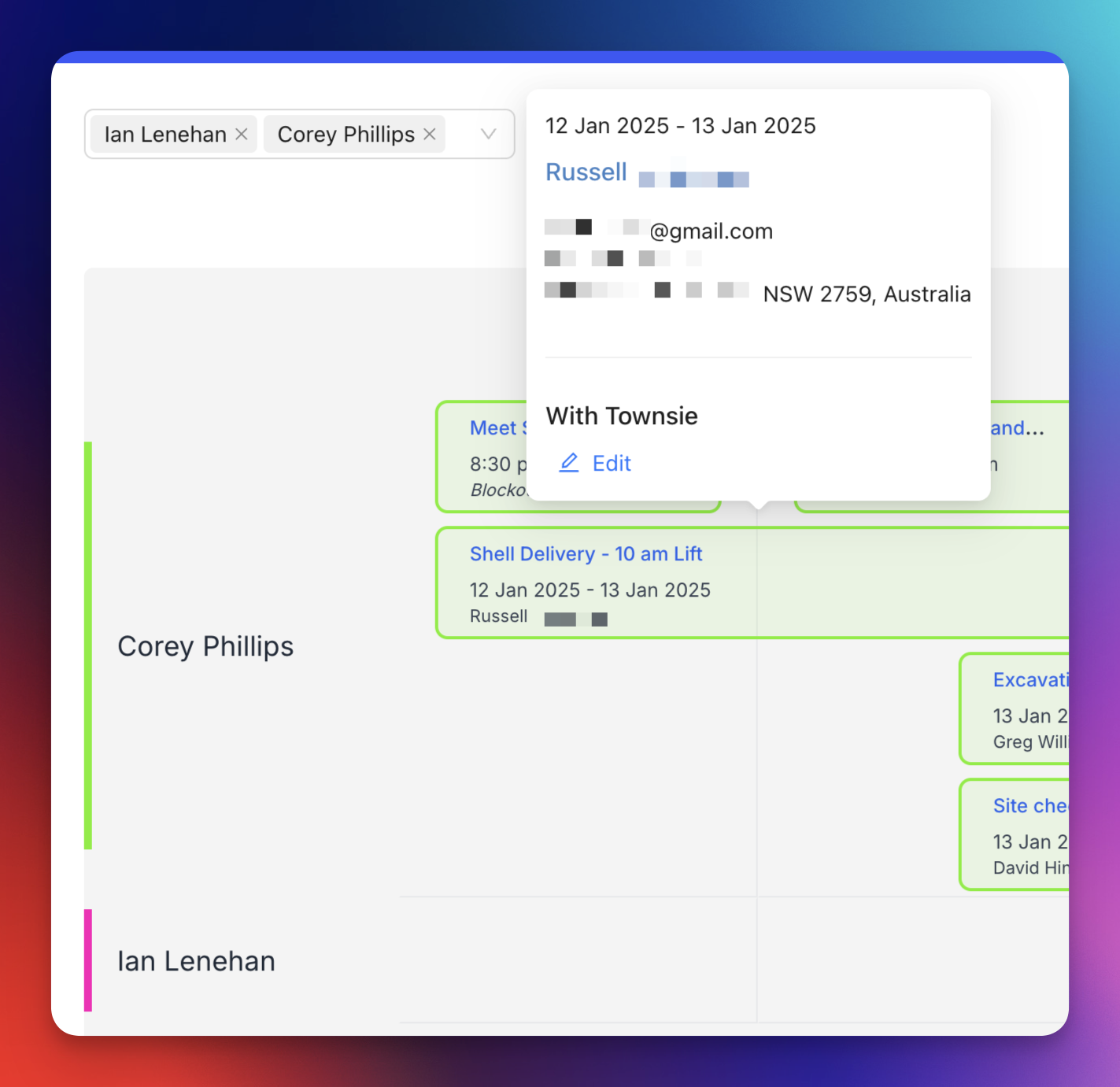
Use the user selector at the top right to choose whose tasks are displayed. Your own name appears first.
Each user can select an accent colour from their user profile or the mobile app. The colour helps identify that user’s tasks in the Planner.
Inspect a task
Hover over a task to see its details. Customer, lead, and job names link to their corresponding Neptune records.
Isolate one job
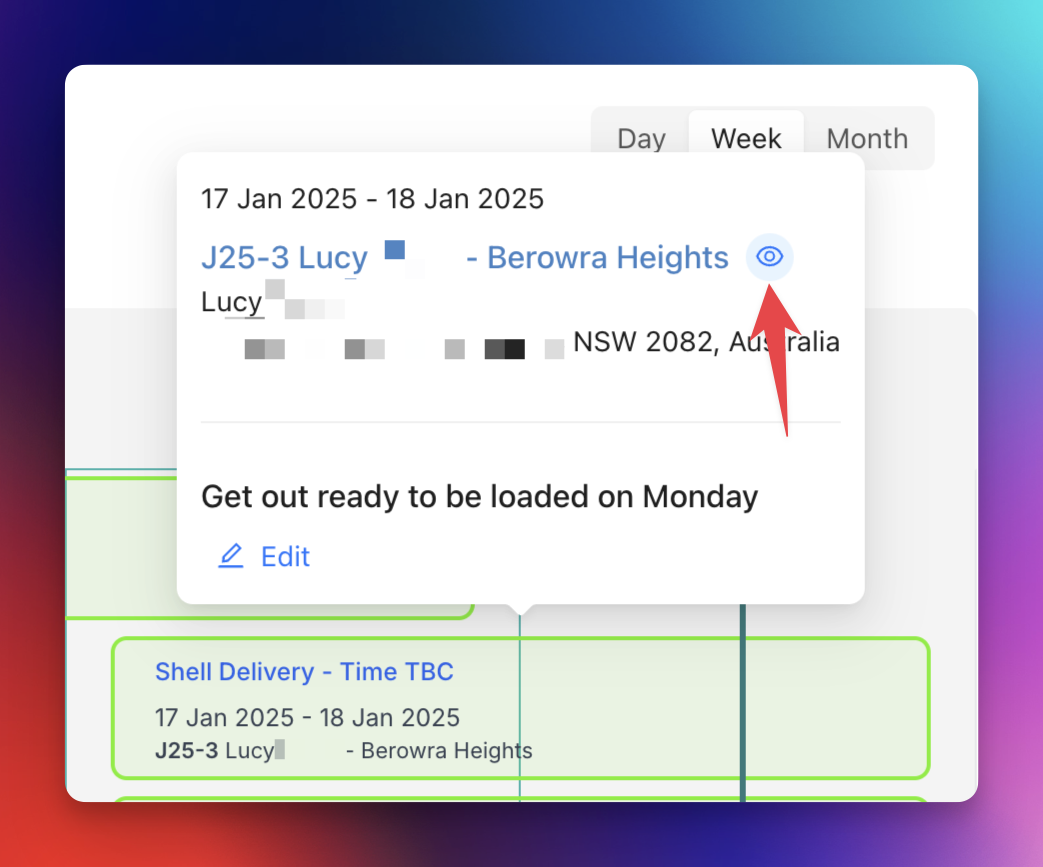
- Hover over a job task.
- Click the eye icon.
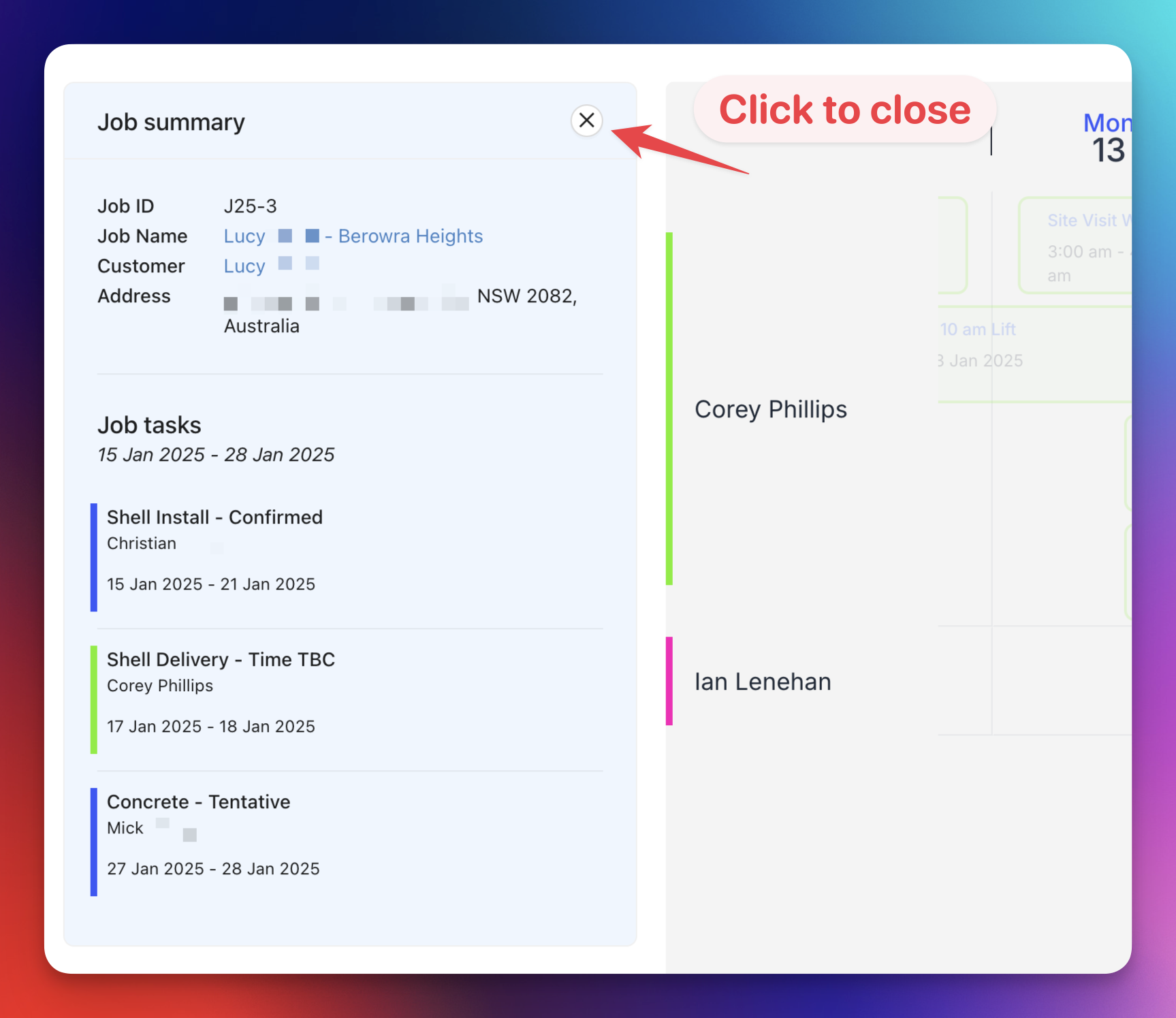
- Review the highlighted tasks and the job sidebar.
- Hover over a task in the sidebar and click the pencil icon when you need to edit it.
- Click X in the sidebar to leave isolate mode.