Neptune CRM Location: Side Nav -> Messages
The Messages page brings customer and lead email and SMS conversations into one place. Use the Emails and SMS tabs to review recent messages, find unread conversations, and respond without opening each customer or lead record first.
You can also review the complete history from the Emails or SMS tab on a customer or lead page.
For more detail, see Sending Emails, Receiving Email Replies, and SMS conversations.
Before you start
- The Messages feature must be enabled for your organisation.
- You need access to the customer or lead records you want to view.
- To reply to a conversation, the record needs at least one email in the thread and a valid contact email address.
- To send an SMS, the record needs a saved contact with a phone number and SMS must be available for your organisation.
- Some actions, such as marking all visible unread conversations as read, may only be available to admin users.
Use the top-level Messages page
Open Messages from the side navigation.
Choose Emails or SMS at the top of the page. Each tab is split into two areas:
- The conversation list on the left shows the customer and lead conversations available to you.
- The conversation panel on the right shows the selected email thread or SMS history.
Email rows show the customer or lead name, latest subject, a short preview, and the latest email date. SMS rows show the record name, whether the latest relevant message was received or sent, a preview, and the date. Unread conversations are highlighted with a blue marker.
In the SMS inbox, unread conversations appear first. Unread conversations are ordered by their latest incoming message, followed by read conversations ordered by their latest SMS activity.
To read a conversation:
- Open Messages from the side navigation.
- Select a conversation from the list.
- Review the email thread or SMS history in the panel on the right.
- For email, expand or collapse individual emails to read more detail.
- Use the customer or lead name at the top of the panel to open the full record.
Opening an unread conversation marks it as read.
Filter conversations
Use the buttons at the top of the Messages page to narrow the list.
- Assigned to me is available on the Emails tab and shows email conversations assigned to you.
- Unread shows email or SMS conversations with unread incoming messages on the selected tab.
If you are an admin and the Unread filter is active on the Emails tab, you may also see Mark all as read. This marks all unread email conversations that match the current filters as read.
Assign a conversation
Email conversations can be assigned to a team member. SMS conversation assignment is not available.
Use Assign conversation to on the Emails tab to choose the team member responsible for following up.
Assignment helps your team keep ownership clear when several people are monitoring inbound email replies.
To clear the assignee, open the same field and remove the selected user.
Reply to a conversation
For email, open a conversation and click the reply button.
Neptune opens a reply drawer using the current email thread. When possible, the reply is addressed to the latest incoming sender so your response stays connected to the conversation.
Before sending, check the recipient, subject, message content, attachments, and sender details. After the reply is sent, the conversation refreshes with the new outgoing email.
Send an SMS from Messages
Open an SMS conversation to use the same history and composer available on the record’s SMS tab.
- Choose the contact who should receive the message.
- Optionally choose Use template and select an SMS template.
- Write or edit the message.
- Check the To and From details.
- Select Send SMS.
Use the Sender filter above the history when you only want to review messages associated with one sender. Clear the filter to return to the complete conversation.
See SMS conversations for recipient, preview, opt-out wording, and troubleshooting guidance.
Mark a conversation unread
Use Mark unread when a conversation has been read but still needs attention.
For email, Neptune marks the latest incoming email in the conversation as unread. For SMS, Neptune marks the latest incoming SMS as unread. The conversation then appears again when you use the Unread filter.
After marking an SMS conversation unread, Neptune returns you to the conversation list so the message remains unread until it is opened again.
Use the Emails tab on a customer page
Open a customer record and choose the Emails tab.
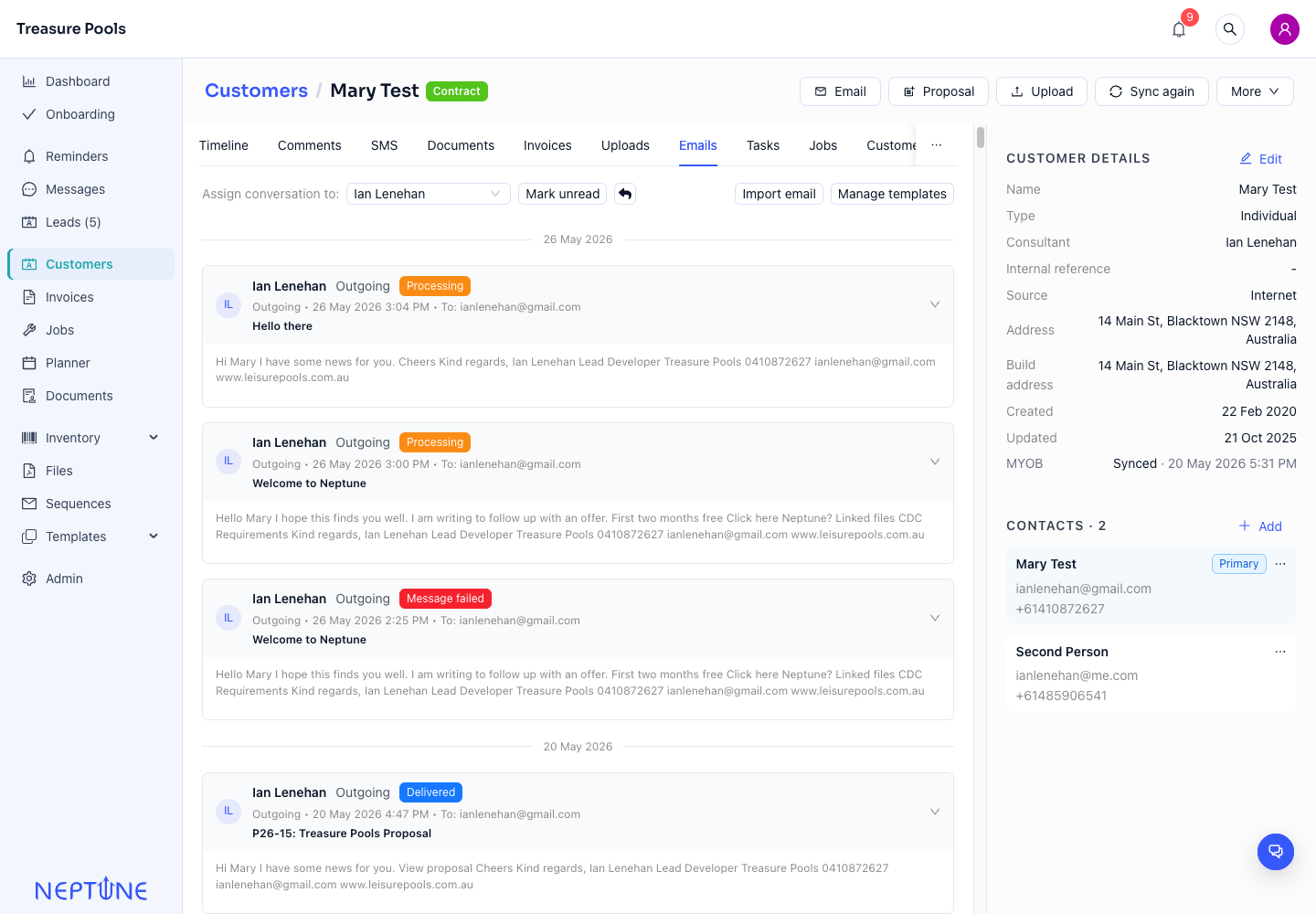
The Emails tab uses the same threaded layout as the Messages page. This is useful when you are already working from a customer record and want to review the full email history in context.
From the customer Emails tab, you can:
- assign the conversation to a team member
- reply to the email thread
- mark the conversation unread
- import an email by copying the customer forwarding address
- open Manage templates to edit email templates
- expand individual emails to review the full body and metadata
Read an email thread
Email threads are grouped by date. Each email card shows whether the email is Incoming or Outgoing, who it was from or sent to, the date and time, and the subject.
Click an email card to expand it.
When expanded, the card can show:
- the full email body
- the recipient
- the sender
- attachments
- brochures
- related documents
- delivery status for outgoing emails
Unread incoming emails may show an unread marker. Opening an unread incoming email from the customer Emails tab marks it as read.
Check outgoing email status
Outgoing emails can show a status tag, such as sent, delivered, failed, bounced, or spam complaint.
If extra delivery detail is available, hover over the status tag to see more information, such as the recipient, update time, or failure reason.
Use failed, bounced, or complaint statuses to decide whether you need to check the recipient address, contact the customer another way, or update the customer record.
Import an email into a customer record
Use Import email when you need to add an existing email to the customer record.
- Open the customer record.
- Choose the Emails tab.
- Click Import email.
- Neptune copies the customer’s forwarding address.
- Paste that address into the To field when forwarding the email from your email app.
After the forwarded email is processed, it appears in the customer’s email history.
Manage email templates
Click Manage templates from the customer Emails tab to open your email templates.
Use templates when your team sends similar replies often, such as follow-ups, booking confirmations, or standard information requests.
For more detail, see Email templates.
Common questions
Why do I not see any conversations on the Messages page?
Check whether you selected Emails or SMS. There may not be any conversations on that tab yet, or the Unread filter may be hiding them. On the Emails tab, also clear Assigned to me to see all email conversations available to you.
Older SMS conversations may first appear in Messages after you open the record’s SMS tab or new SMS activity occurs. Open the customer or lead and choose SMS to review and prepare its earlier history.
Why can I not reply?
The conversation may not have a valid reply target yet, or the record may not have a contact email address. Open the customer or lead record and check the contact details.
Why did a conversation disappear from the Unread filter?
Unread conversations leave the filtered list after the incoming message is marked as read. You can still find the conversation by clearing the Unread filter or opening the customer or lead record.
Why is an outgoing email marked failed or bounced?
The recipient address may be incorrect, the recipient mail server may have rejected the message, or the message may have triggered a delivery issue. Check the status details if available, then confirm the contact email address before sending again.