File categories
Adding custom file categories under the File categories tab enables you to add your own categories to files that you upload in the Files page.
To get started, click on the Add new category button. In the text field that appears, type in your first custom file category, for example “Brochures”. Continue to press Add new category as many times as required. Click on the blue Save categories button to save your changes to the database.
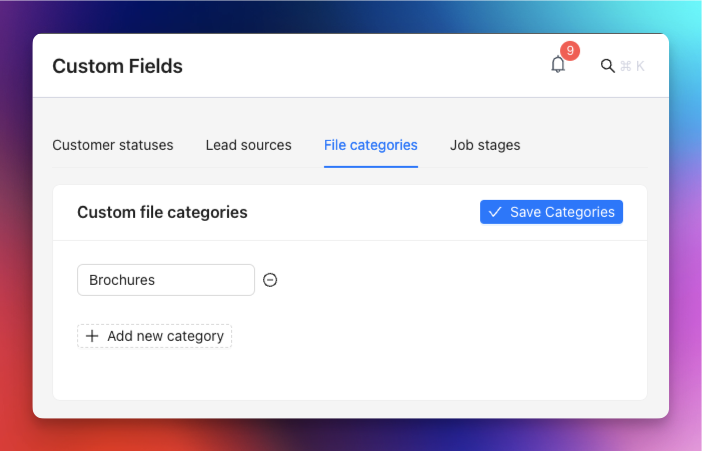
You can add categories at any time. To rename or remove a category, first change any files that currently use it to another category. Neptune will not save the change while files are still assigned to the old category.
Upload categories
Adding custom upload categories under the Upload categories tab enables you to add your own categories to files that you upload against a customer.
To get started, click on the Add new category button. In the text field that appears, type in your first custom upload category, for example “Site photos”. Continue to press Add new category as many times as required. Click on the blue Save categories button to save your changes to the database.
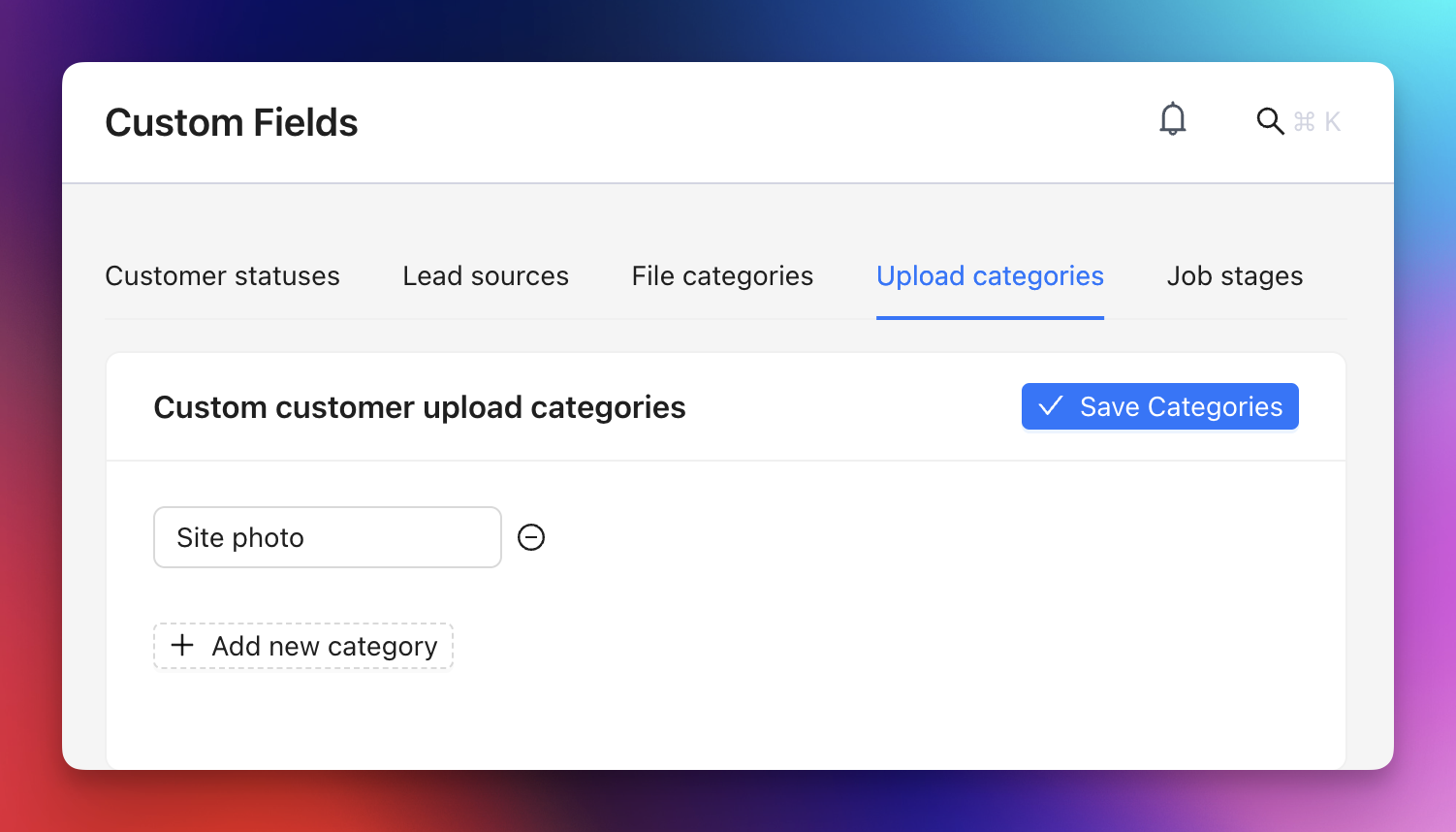
You can choose a default category for uploads from the Neptune mobile app and decide whether users must select a category when uploading.
You can add categories at any time. To rename or remove a category, first change any customer uploads that currently use it to another category. Neptune will not save the change while uploads are still assigned to the old category. If the category is the mobile app default, choose another default or clear the selection before removing it.