Create a task
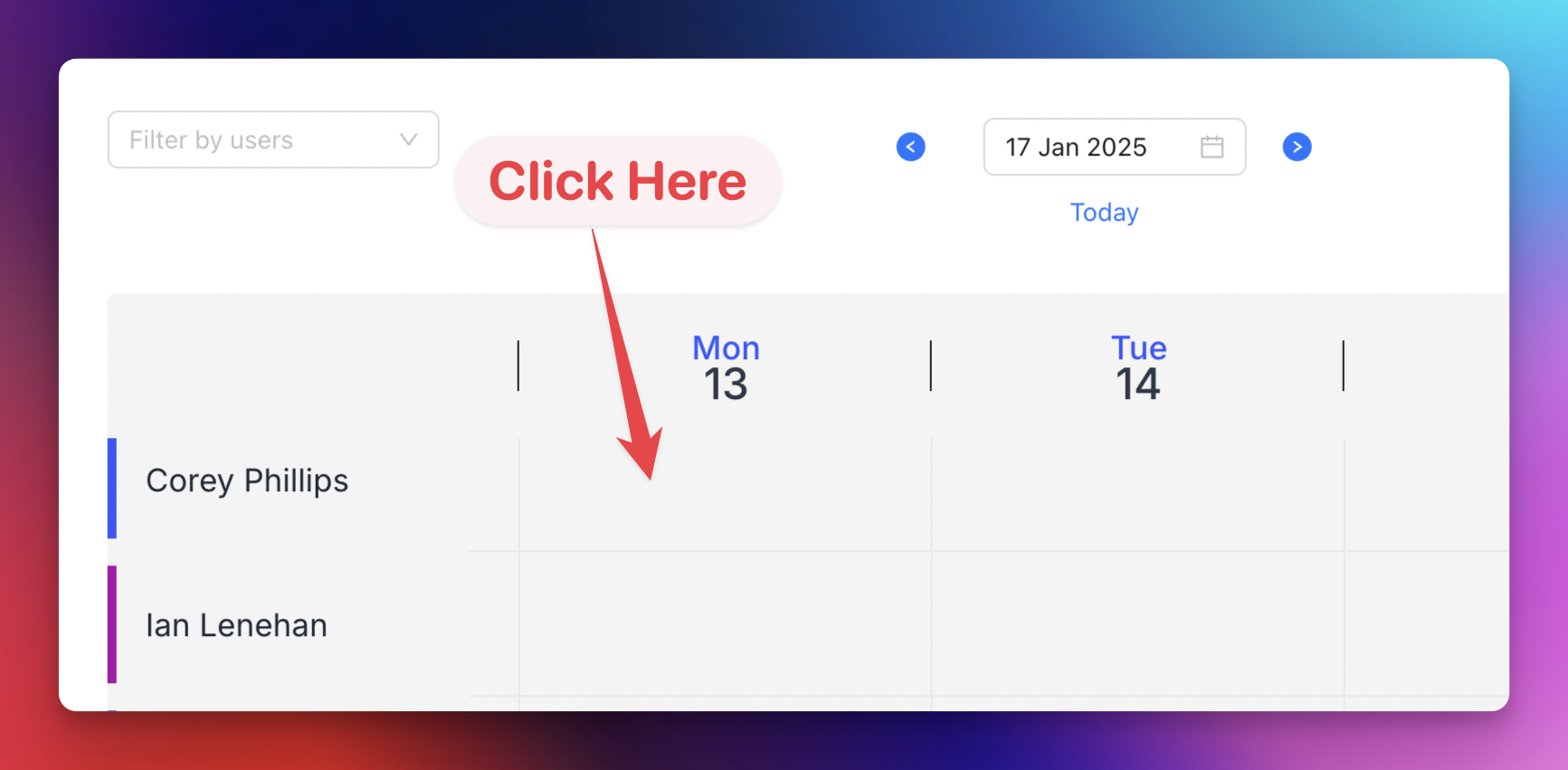
- Click an available space in the Planner.
- Check the preselected date, time, and user.
- Turn All day on when a specific time is not required, or set the start and end time.
- Enter a Title and optional Description.
- Select one or more users. Creating an ordinary task for multiple users creates a separate task for each selected user. To schedule one meeting with several staff members, create an appointment instead.
- Choose Job, Customer, Lead, or Blockout from Type.
- Select the related job, customer, or lead when required.
- Optionally select a Start form or End form.
- Click Save.
The job search accepts a job name, customer name, build address, or job ID. Customer and lead searches accept record and contact details. See Job Settings for information about forms attached to tasks.
Edit and move a task
To edit a task directly:
- Hover over the task.
- Click Edit in the task details.
- Update the task.
- Click Save.
You can also change a task from the calendar:
- Drag the whole task to move its start and end together.
- Drag a task edge to change its duration.
- Drag a task vertically to assign it to another user.
After dragging or resizing, Neptune opens the task drawer with the proposed changes. Review the details and click Save to confirm them.
For an appointment, use Edit to change its assigned consultant or additional staff attendees.
Types of tasks
- Job task: Work assigned to a user against a Neptune job. See the Jobs documentation for more information.
- Customer task: Work assigned directly against a customer without linking it to a particular job.
- Lead task: Follow-up work assigned against a lead before it is converted to a customer.
- Appointment: A meeting or call linked to a customer or lead, with one assigned consultant and optional additional staff attendees.
- Blockout task: Time when a user is unavailable, such as annual leave.