Use the Emails tab on a customer page
Open a customer record and choose the Emails tab.
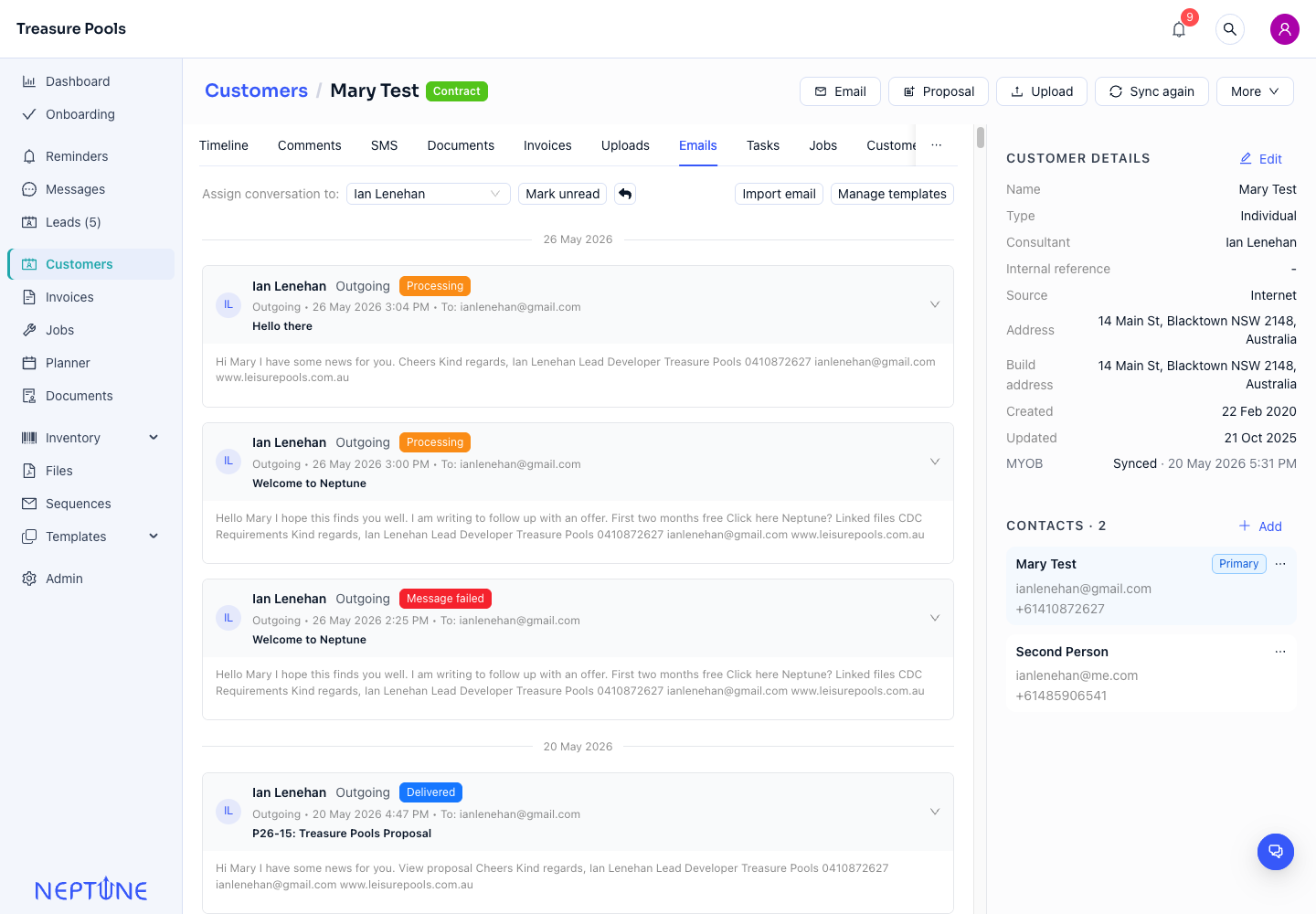
The Emails tab uses the same threaded layout as the Messages page. This is useful when you are already working from a customer record and want to review the full email history in context.
From the customer Emails tab, you can:
- assign the conversation to a team member
- reply to the email thread
- mark the conversation unread
- import an email by copying the customer forwarding address
- open Manage templates to edit email templates
- expand individual emails to review the full body and metadata
Read an email thread
Email threads are grouped by date. Each email card shows whether the email is Incoming or Outgoing, who it was from or sent to, the date and time, and the subject.
Click an email card to expand it.
When expanded, the card can show:
- the full email body
- the recipient
- the sender
- attachments
- brochures
- related documents
- delivery status for outgoing emails
Unread incoming emails may show an unread marker. Opening an unread incoming email from the customer Emails tab marks it as read.
Check outgoing email status
Outgoing emails can show a status tag, such as sent, delivered, failed, bounced, or spam complaint.
If extra delivery detail is available, hover over the status tag to see more information, such as the recipient, update time, or failure reason.
Use failed, bounced, or complaint statuses to decide whether you need to check the recipient address, contact the customer another way, or update the customer record.
Import an email into a customer record
Use Import email when you need to add an existing email to the customer record.
- Open the customer record.
- Choose the Emails tab.
- Click Import email.
- Neptune copies the customer’s forwarding address.
- Paste that address into the To field when forwarding the email from your email app.
After the forwarded email is processed, it appears in the customer’s email history.
Manage email templates
Click Manage templates from the customer Emails tab to open your email templates.
Use templates when your team sends similar replies often, such as follow-ups, booking confirmations, or standard information requests.
For more detail, see Email templates.
Common questions
Why do I not see any conversations on the Messages page?
Check whether you selected Emails or SMS. There may not be any conversations on that tab yet, or the Unread filter may be hiding them. On the Emails tab, also clear Assigned to me to see all email conversations available to you.
Older SMS conversations may first appear in Messages after you open the record’s SMS tab or new SMS activity occurs. Open the customer or lead and choose SMS to review and prepare its earlier history.
Why can I not reply?
The conversation may not have a valid reply target yet, or the record may not have a contact email address. Open the customer or lead record and check the contact details.
Why did a conversation disappear from the Unread filter?
Unread conversations leave the filtered list after the incoming message is marked as read. You can still find the conversation by clearing the Unread filter or opening the customer or lead record.
Why is an outgoing email marked failed or bounced?
The recipient address may be incorrect, the recipient mail server may have rejected the message, or the message may have triggered a delivery issue. Check the status details if available, then confirm the contact email address before sending again.
Related docs
- Sending Emails
- Receiving Email Replies
- Email templates
- SMS conversations
- SMS templates
- Files
- Customers: Associations