The job card
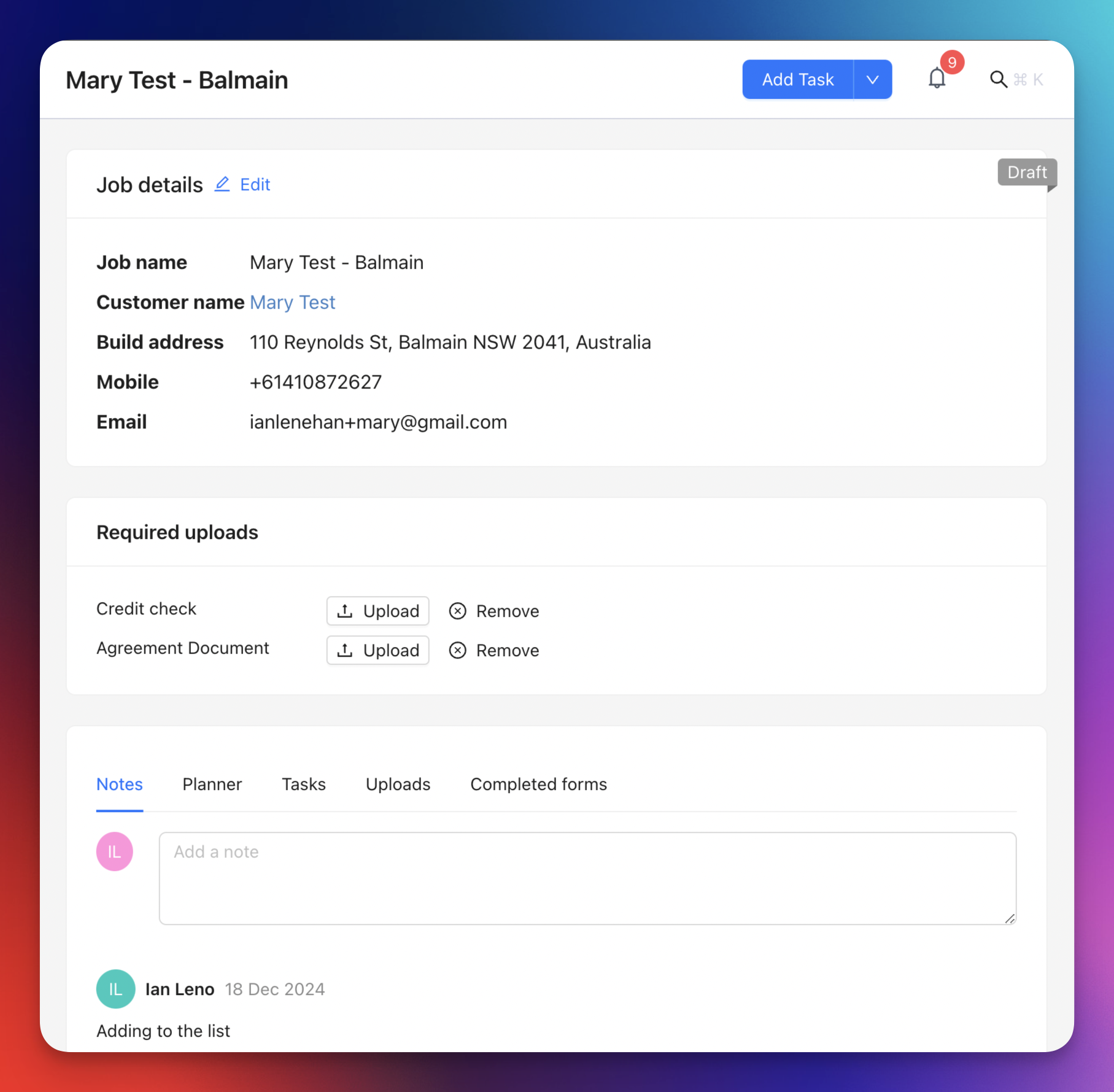
Click into the job card by clicking on the job name, from either the jobs page or the job list on the customer record. Here you will see the basic details of the job and the linked customer. You can click back through to the customer record by clicking the customer name.
Timeline
The Timeline is the first tab shown when you open a job. It brings the main job history into one chronological view, including:
- when the job was created
- stage and job manager changes
- job notes
- completed forms
- emails and SMS messages linked to the job
Neptune loads recent activity first. Select Load older events when you need to review more history. When you open the Timeline for an existing job for the first time, Neptune may briefly show Building timeline while it prepares the available history.
You can also add a note directly from the Timeline. The note remains available from the separate Notes tab and is also added to the linked customer’s history.
For a completed form, the Timeline shows the form name, when it was completed, and who completed it. Select Open form details to review the submitted answers.
Email and SMS
Use Email or SMS at the top of the job card to contact the linked customer’s saved contacts. Messages sent from the job are shown in three places:
- the job’s Emails or SMS tab
- the job Timeline
- the linked customer’s communication history
See SMS conversations for choosing a recipient, reviewing the completed message, and sending SMS.
Replies are not automatically linked to a job. If a reply or an older message belongs with the job, import that individual message:
- Open the job’s Emails or SMS tab.
- Select Import emails or Import SMS.
- Find the message and select Add.
A message can be linked to one job at a time. If it is already linked to another job, Neptune shows that job in the import list. Select Move here, then confirm the move.
To remove a message from the job, open the same import list and select Remove. This removes the message from the job and its Timeline without deleting it from the customer’s communication history.
Notes
Select the Notes tab and type in the text input to add a note to the job card. The Save button appears after you start typing. The note is also shown in the job Timeline and the linked customer’s history.
Planner
This provides a mini-view of the Planner but only tasks related to this job. Clicking on a grid item on this planner will open the New task drawer. The task will already be assigned to this job, as well as the user on whose tile you clicked.
Tasks
This tab provides a list view of all the tasks assigned to this job. Older tasks are hidden by default and can be viewed by toggling Show pasts tasks.
Completed forms
Any forms completed by users of the mobile app will appear here, where you can review them.